Step by Step Instructions
Step 1 — Open the ThinkorSwim Shared Link
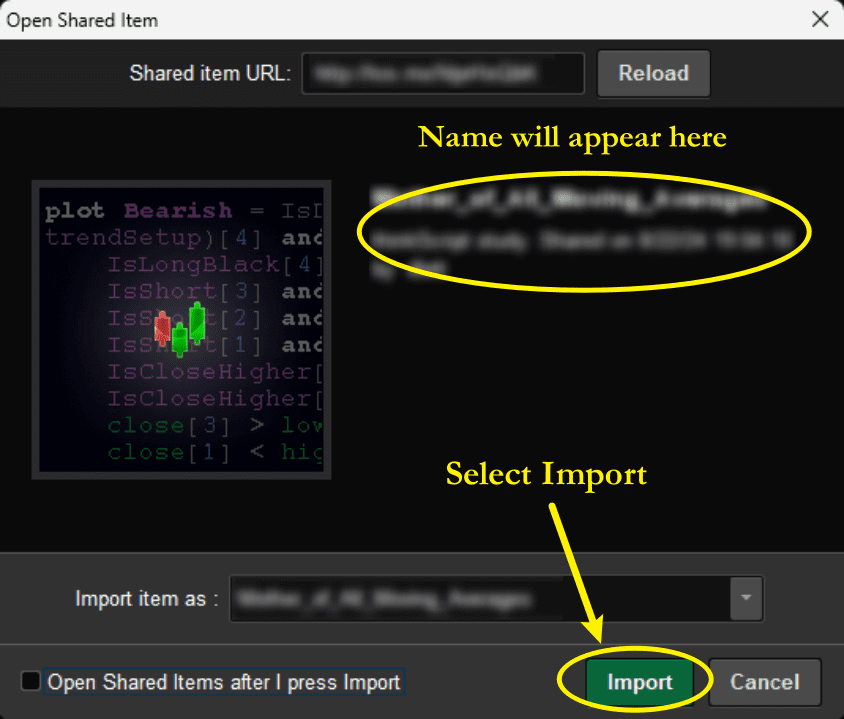
- After clicking the download button above, you will be taken to a ThinkorSwim sharing page.
- Expand the Manual Download section to reveal the shared indicator URL.
Step 2 — Copy the Shared URL
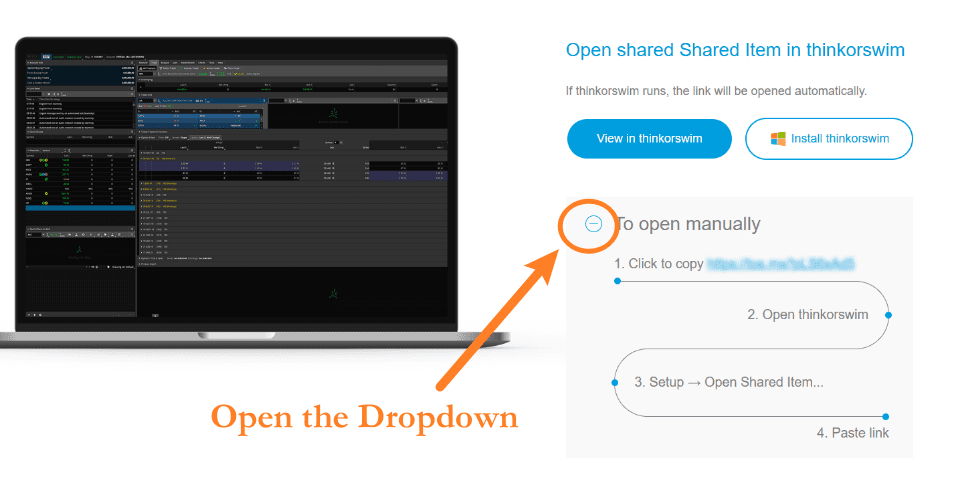
- Locate the URL displayed under the Manual Download section.
- Highlight the entire link and copy it.
- You can do this by pressing Ctrl + C or by right-clicking the link and selecting Copy from the menu.
Step 3 — Open the Import Tool in ThinkorSwim
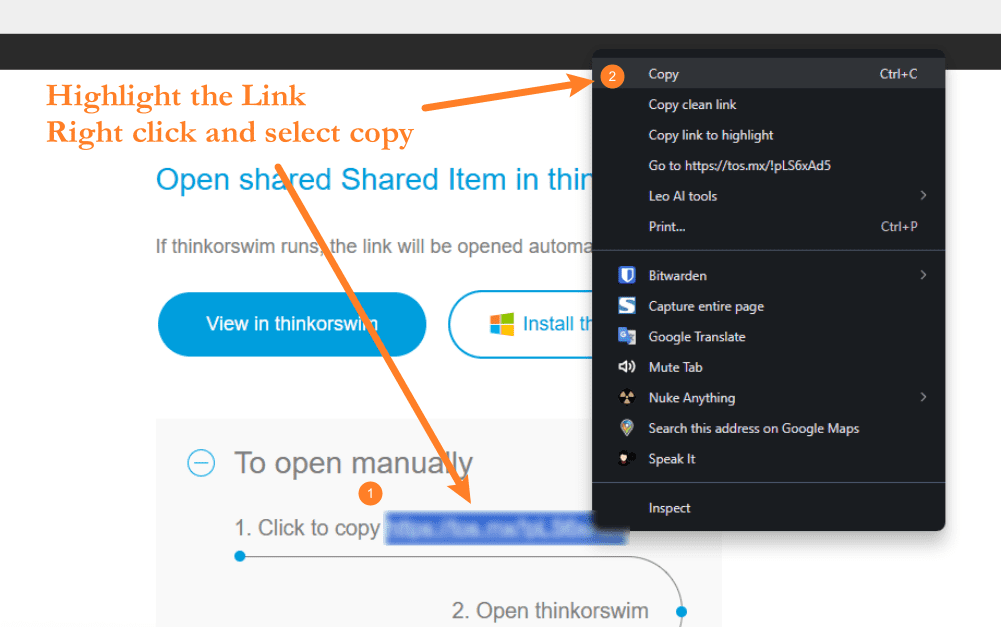
- Launch ThinkorSwim and go to the top menu.
- Select:
- Setup → Open Shared Item
- This will open the Import Shared Item window.
Step 4 — Paste the Shared Link
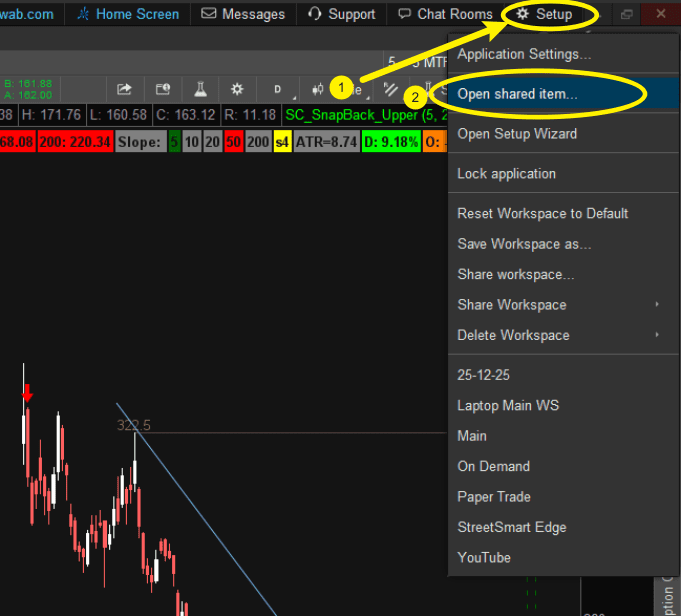
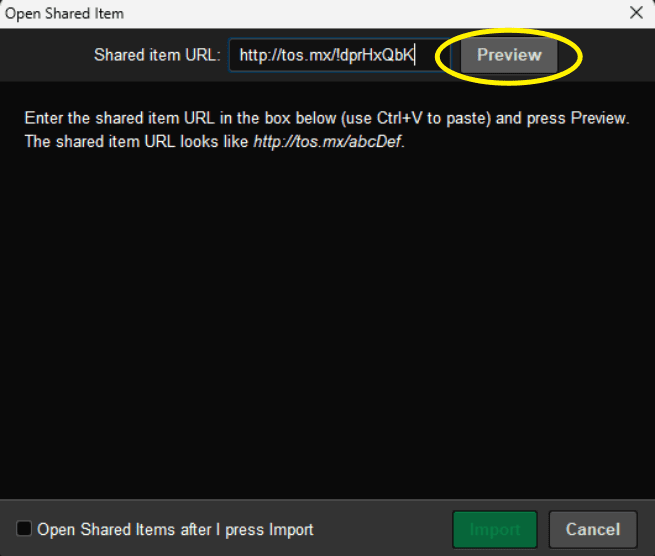
- Paste the copied URL into the Shared URL field.
- Then click Preview to load the shared item.
Step 5 — Import the Indicator
- The name of the indicator will appear in the preview window.
- Click Import to add the indicator to your ThinkorSwim platform.
You can now add the indicator to your charts through the Studies menu.
You’re all set. Enjoy the indicator and happy trading.